
How to Borrow and Return Licenses
License borrowing enables floating network licenses (FNLs) to be used without a network connection to the license server, allowing you to temporarily run COMSOL Multiphysics® when, for example, traveling with a laptop. Licenses include a default maximum borrowing period of one month. Your license administrator may configure custom permissions as shown in "How to Administer Optimal COMSOL License Access with an Options File".
Note: For class kit licenses (CKLs), which function similarly to FNLs, license borrowing is disabled by default. Please contact your local sales representative to discuss enabling this functionality.
How to Borrow Licenses
From the File menu (Windows®) or Options menu (Linux®, macOS), select Licensed and Used Products and click Borrow. Select the licenses you want to borrow from the list and specify the number of days you want to keep them. Click OK.
Note: Other users cannot use the license keys that you have checked out.
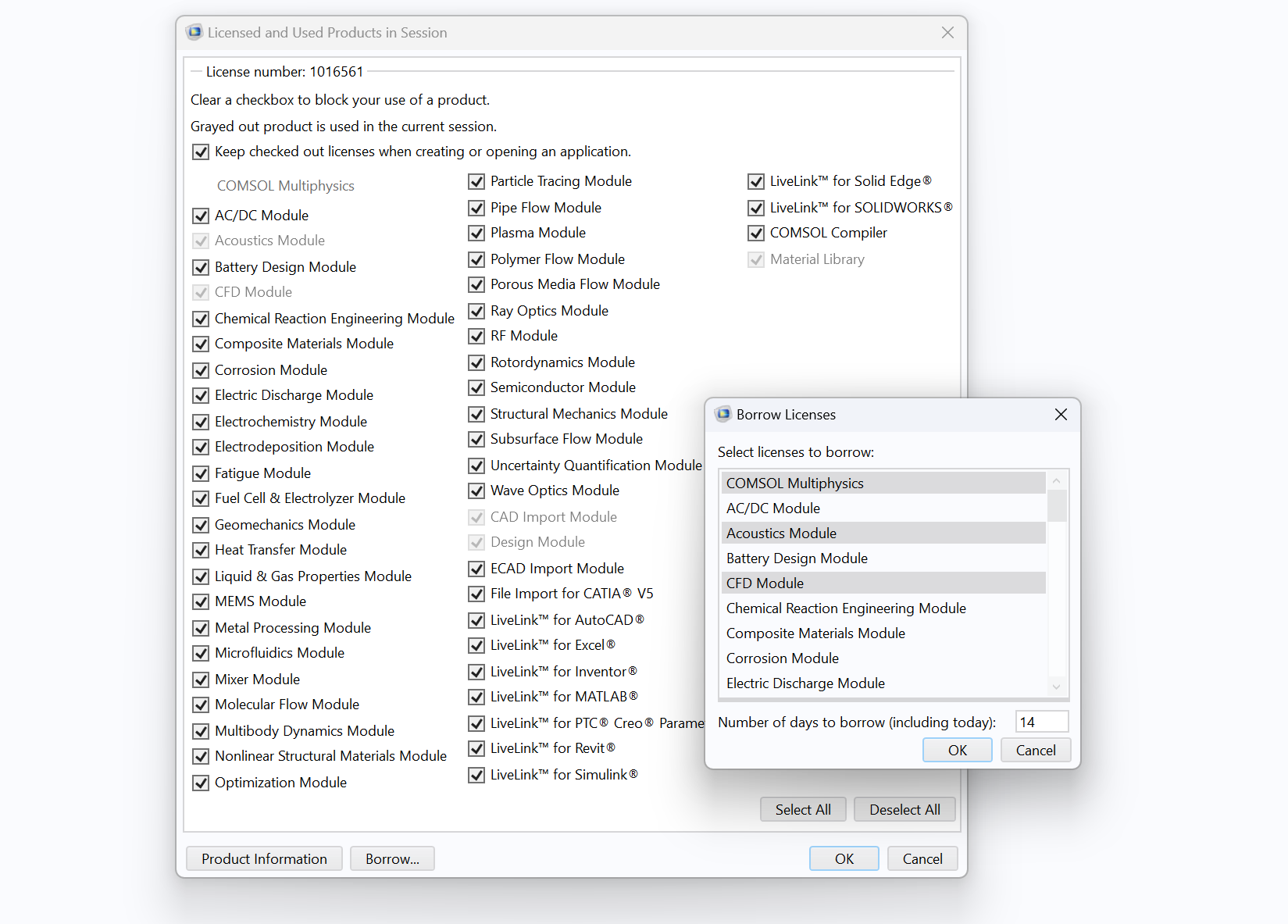 A window with many checkboxes and module names is partially behind a smaller window with some options in a text list highlighted in gray.
The Borrow Licenses prompt opens from the Licensed and Used Products in Session window, shown here on a Windows® machine.
A window with many checkboxes and module names is partially behind a smaller window with some options in a text list highlighted in gray.
The Borrow Licenses prompt opens from the Licensed and Used Products in Session window, shown here on a Windows® machine.
Returning Borrowed Licenses Manually
Licenses are automatically returned when the borrowing period expires, but borrowers can manually return their licenses early by connecting to the same network as the license server and running a command. Only the borrower can return licenses early; the borrowed licenses remain unavailable to other users until they are returned or expire.
Borrowers can use the license utility commands from a terminal to check the status and manually return licenses early. The commands must be run from the license/$arch directory in the COMSOL installation folder, where $arch is either win64 (64-bit Windows®), glnxa64 (64-bit Linux®), glnxarm64 (ARM Linux®), maci64 (64-bit macOS), or macarm64 (ARM macOS).

An example where the directory has been set in the Windows® Command Prompt.
Commands on macOS and Linux®
Running the command ./lmborrow -status will give you a list of all borrowed license features.
Each borrowed feature then has to be returned by the command ./lmborrow -return -c ../license.dat , where
To verify that the licenses have been returned, run ./lmborrow -status again. The output should be empty.
Commands on Windows®
The command lmutil lmborrow -status will give you a list of all borrowed license features.
Each borrowed feature then has to be returned via lmutil lmborrow -return -c ../license.dat .
このページに関するフィードバックを送信, または サポートに連絡 してください.


