
Setting Up the Chatbot Window in COMSOL Multiphysics®
You can interact with a chatbot from your chosen provider using the Chatbot window within the COMSOL Multiphysics® software. This functionality enables you to:
- Send general inquiries
- Generate and debug COMSOL API for use with Java code
- Ask questions about modeling with the COMSOL Multiphysics® software
Supported providers include OpenAI, Azure OpenAI, and any OpenAI API-compatible models. In this article, we will cover how to set up and enable the chatbot tool.
Note: The chatbot is only available on Windows® for installations of COMSOL Multiphysics® versions 6.3 and up.
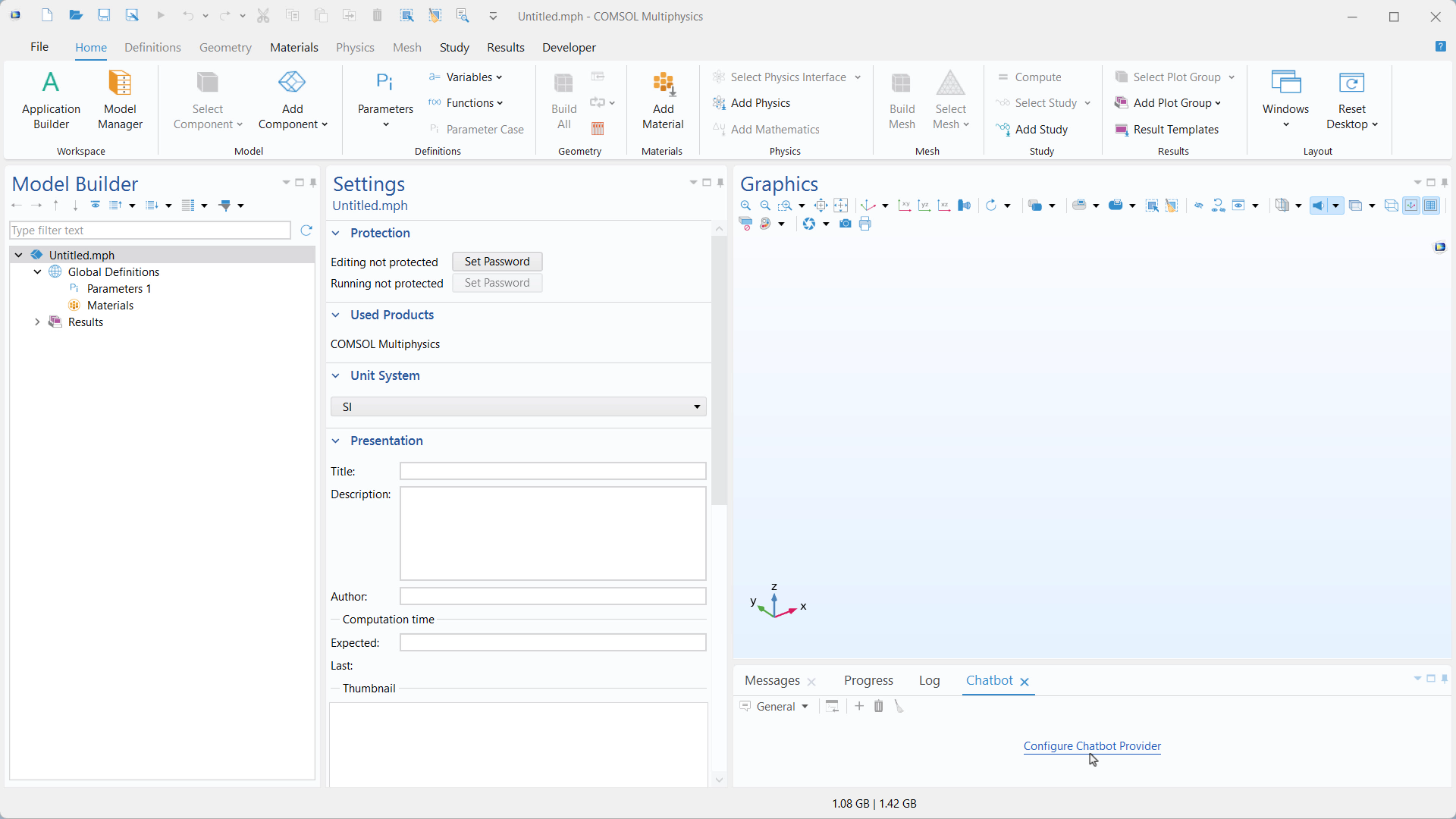 A UI screenshot of the Model Builder with the Chatbot window open and the Configure Chatbot Provider link highlighted, prompting you to specify a chatbot provider and enter an API key to start using the chatbot.
The COMSOL Multiphysics® UI with the Chatbot window opened (lower right) and the corresponding Configure Chatbot Provider link highlighted.
A UI screenshot of the Model Builder with the Chatbot window open and the Configure Chatbot Provider link highlighted, prompting you to specify a chatbot provider and enter an API key to start using the chatbot.
The COMSOL Multiphysics® UI with the Chatbot window opened (lower right) and the corresponding Configure Chatbot Provider link highlighted.
Chatbot Requirements
The Chatbot can be used once you complete the following steps:
- Obtain chatbot configuration information from a supported provider (API key, model, etc.)
- Install the chatbot components through the COMSOL installer
- Configure the Chatbot window
Obtain Chatbot Configuration Information
The Chatbot window in COMSOL Multiphysics® needs to be configured with an API key from a provider. Additional information may be required depending on the provider. A summary of the required configuration information is given for each of the following providers:
| Provider | Configuration Information |
|---|---|
| OpenAI |
|
| Azure OpenAI |
|
| OpenAI API compatible |
|
Each provider requires an API key, and may require other configuration information to connect with COMSOL Multiphysics®. The process for obtaining your configuration information is subject to the respective AI hosting platform. You can change the API key and other configuration settings at any time in the software through the Preferences dialog in the Chatbot section.
See "Obtaining Chatbot Configuration Information" for a demonstration of the process to obtain an OpenAI API key.
Install the Chatbot Components
Before configuring the settings in the software to use the chatbot tool, you must install the chatbot components. By default, the components are selected to be included in your installation of COMSOL Multiphysics. For previous versions of the software, you must manually opt to install the components (as seen in the image below). In such a case, to include chatbot components, check the Chatbot Components option in the Select products to install window of the Products tab of the COMSOL installer.

A screenshot of the COMSOL Multiphysics® 6.4 Installer with the Products tab open and the Chatbot Components checkbox highlighted.
After you have confirmed the Chatbot Components checkbox was selected, you can resume the remaining steps to complete your installation of the COMSOL® software. The installation process will vary slightly depending on whether you are updating your currently existing installation of COMSOL Multiphysics® versus upgrading your installation to a new major version. Further details on the distinction between these variants and how to install the software are available here: "COMSOL® Installation Companion".
Configure the Chatbot Window
Once the Chatbot Components have been installed, the provider can be configured. Open a session of COMSOL Multiphysics®. From the Home ribbon tab, under the Windows button, select Chatbot to open the Chatbot window, where you will be prompted to Configure Chatbot Provider. This will open the chatbot preferences in which you supply your API key and other configuration information as needed. Click OK.
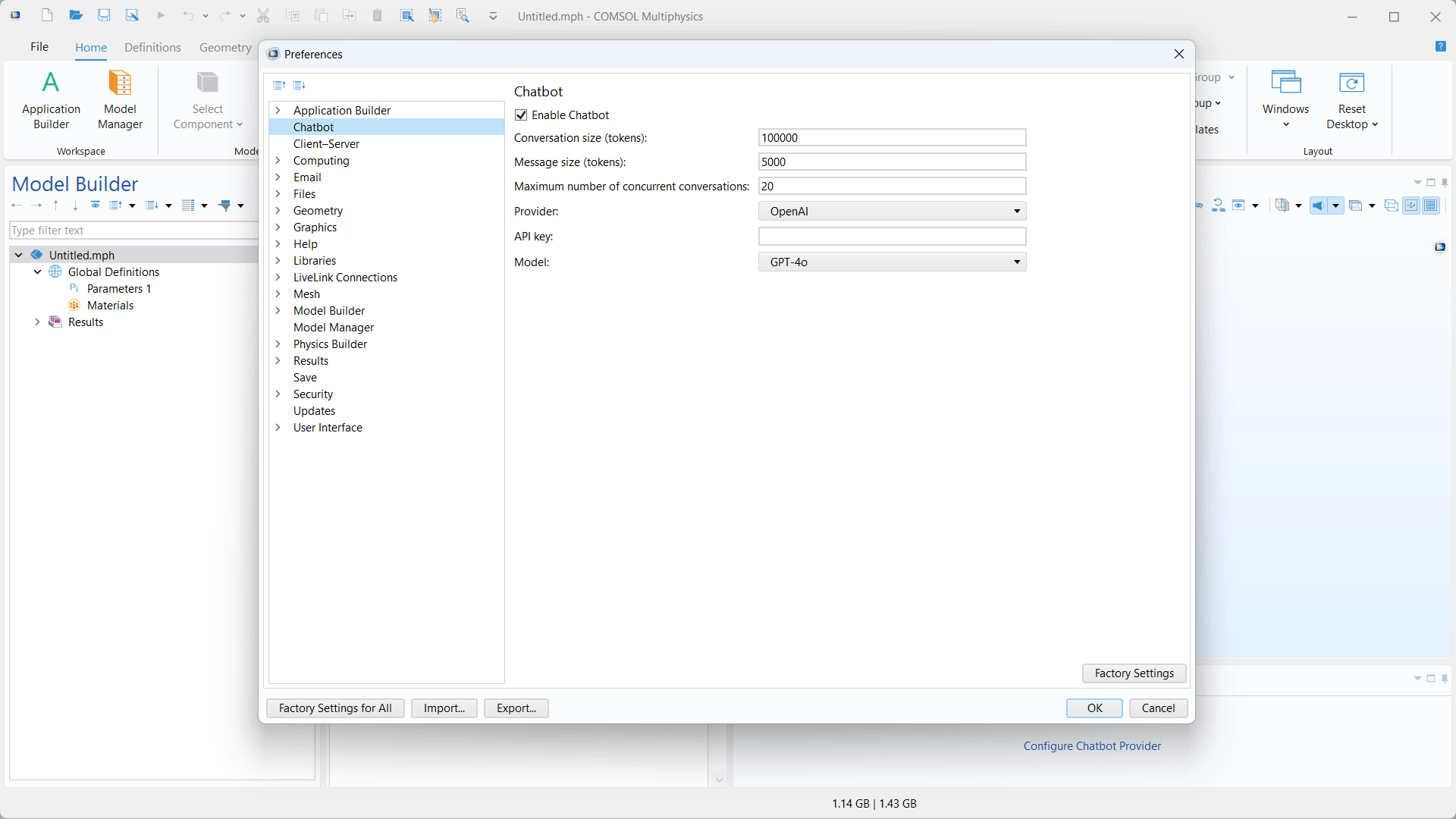 A UI screenshot of the Model Builder where the Configure Chatbot Provider dialog is open.
COMSOL Multiphysics with the Chatbot window opened and the chatbot preferences open.
Note that you may select Tool calling for OpenAI API compatible providers, to allow your chatbot to browse the COMSOL® documentation for information. Once you have entered the configuration information and selected your settings you can click OK. You are now ready to use the Chatbot window in the software.
You can also change the settings from File → Preferences → Chatbot.
See the "Using a Chatbot" page of the documentation, for more information regarding the Preferences settings.
 A UI screenshot of the Model Builder where the Chatbot window is opened and a programming conversation has been initiated.
The COMSOL Multiphysics® UI with the Chatbot window configured and displaying part of a conversation. Here, the generated code can easily be sent to the Java Shell window, where it can be run to define a new Analytic function node in the model tree.
Further Learning
For more information about the chatbot tool, see the "Using a Chatbot" section of the Reference Manual documentation. See "Obtaining Chatbot Configuration Information" for more information on the information required to configure the Chatbot window. You can see examples that demonstrate using this functionality to serve as a helpful modeling assistant through the blog post on "Using the Chatbot Window in COMSOL Multiphysics®". You can also refer to the Learning Center entry "Modeling with ChatGPT™" to gain practice in using the chatbot functionality in your modeling process. Note that the procedure outlined in that entry can be done within the Chatbot window instead of needing to have both a session of COMSOL Multiphysics and a web browser open. You can learn about the COMSOL API and how the Chatbot window can interact with it in the Learning Center entry "Overview of the COMSOL API".
ChatGPT is a registered trademark of OpenAI, Inc.
Java is a registered trademark of Oracle and/or its affiliates.
Microsoft and Windows are trademarks of the Microsoft group of companies.
このページに関するフィードバックを送信, または サポートに連絡 してください.


